


Turn project context into progress.
Read issues, find blockers and prepare the next update with the work in view.
Explore project toolsBring the context you work with into Chat. Find answers, prepare updates and move work forward without copying everything by hand.
Explore connectors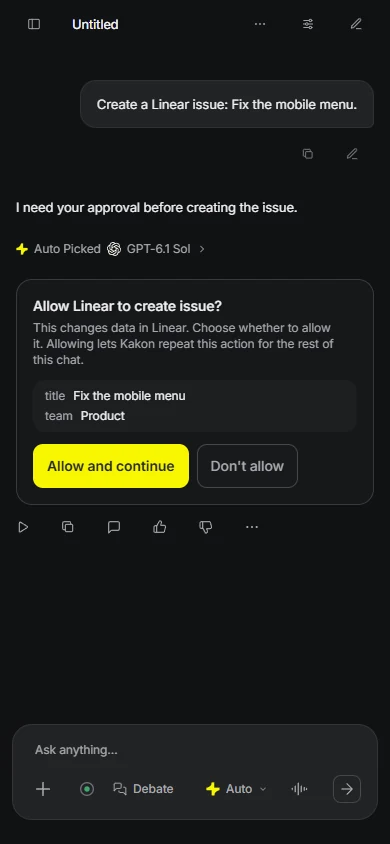
The right context makes the conversation useful. Start with the tools already part of your day.
Read issues, find blockers and prepare the next update with the work in view.
Explore project tools
Find the page behind an answer and turn workspace context into a useful summary.
Explore workspace knowledge

Check library examples and understand a codebase with documentation beside you.
Explore developer toolsBrowse by the work you do, or search for an app. Sign in to Kakon to connect; account access and service permissions apply.
13 connections. Your kind of work.
6 of 13 available connectors
Work & knowledgeIssues, projects and team workflows
“Find the blocked issues in my Linear project and summarize what needs attention.”
DocumentationSearch, update and read pages
“Find our onboarding guide in Notion and summarize the key steps.”
Work & knowledgeJira issues and Confluence pages
“Find the Jira issues for this project and the related Confluence pages.”
 Development
Errors, releases and issue detail
“Show me the details of this Sentry error and the release where it first appeared.”
 Work & knowledge
Payments, customers and subscriptions
“Look up this customer in Stripe and summarize their subscriptions.”
 Files & design
Designs, search and exports
“Find my presentation in Canva and help me export it.”
Open Tools & connectors in Chat. Choose a service and review the permissions.
Name the app and what you need. Use the examples in the directory as a starting point.
Read the answer. Review a proposed change before allowing it in the conversation.
Kakon uses the Model Context Protocol, an open way to connect AI with tools and information. Bring a compatible remote MCP server, or tell us what you want to connect next.
Remote compatibility matters. Local desktop servers and every third-party MCP tool are not automatically supported.
These services cannot be connected yet. Availability will appear in the app when they are ready.
Questions about a service or your data? Read how data is handled →
A connector lets Kakon use information and tools from a service you choose. Instead of pasting everything into Chat, you can ask about a connected workspace, read a record or prepare an action in context.
For private services, sign in to that service and review the requested permissions. Public connectors such as Context7, DeepWiki and Cloudflare Docs do not need a separate service account. You still need to sign in to Kakon.
Some connectors can create or update data. Kakon asks for approval before a data-changing tool is allowed in a conversation. Review the proposed action and choose whether to allow it.
It is on the roadmap but cannot be connected yet. The available directory is separate, so you can find services whose connection flow is supported. Check the app for current account access.
Kakon supports compatible remote MCP endpoints using a public HTTPS URL. The endpoint, transport and sign-in need to work with Kakon. This does not mean every MCP server or local desktop tool is supported. Ask us about a specific server if you are unsure.